
Quickstart
Receive webhook through Hookspot to the app on your machine.
Create a free account, add route.
Create an account
Section titled “Create an account”Open the Sign up page in Hookspot.
- Sign up with Github, Google or enter a Name, Email and Password.
- If you signed up with email, confirm email from your mailer, then sign in.
- Create organization.
Hookspot will create a Default project.
Create a route
Section titled “Create a route”Create a route from a new source to a path in your app.
- In the setup steps, click Create source.
- In the New route dialog, enter the Name.
- Enter path in your local app that will receive the webhook.
- Click Create route.
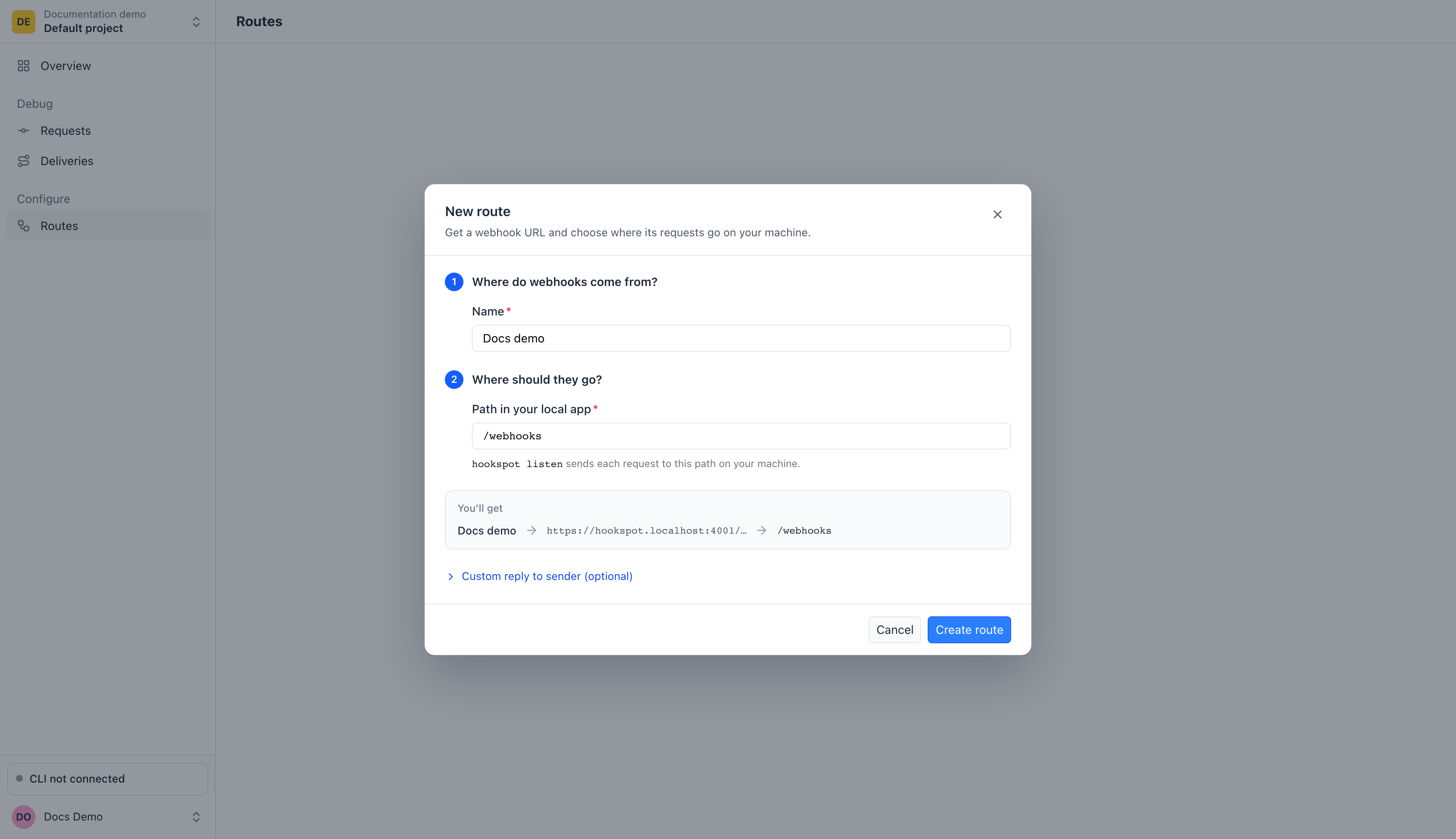
The Routes board opens. Click the Docs demo card to see its Webhook URL, which you paste into the service that sends webhooks.
Run the CLI
Section titled “Run the CLI”Run these commands in any directory. Install the CLI with npm:
npm install -g @hookspot/cliLog in. The CLI opens your browser and prints a code:
hookspot login╭─ Log in ──────────────────────────╮│ Confirm this code in your browser ││ ││ 2NCL-AXSJ │╰───────────────────────────────────╯https://<hookspot-host>/cli/login/<token>○ Waiting for approval… (Ctrl+C to cancel)✓ Logged in as [email protected]✓ Active project set to Documentation demo | Default projectIn the browser, check that the Confirmation code matches and click Approve login. The organization and project you pick there become the CLI’s active project.
Forward webhooks to your app on port 3000:
hookspot listen --forward-to http://localhost:3000The CLI opens a full-screen view and waits. Your app gets each webhook at
http://localhost:3000/my_webhook, as
Forward to your app explains.
If you have no app yet, run hookspot listen without --forward-to to inspect
requests. The CLI answers 200 itself and does not forward them.
Send a test request
Section titled “Send a test request”Open Overview in the app and click Send test request. You can also
press t in the CLI.
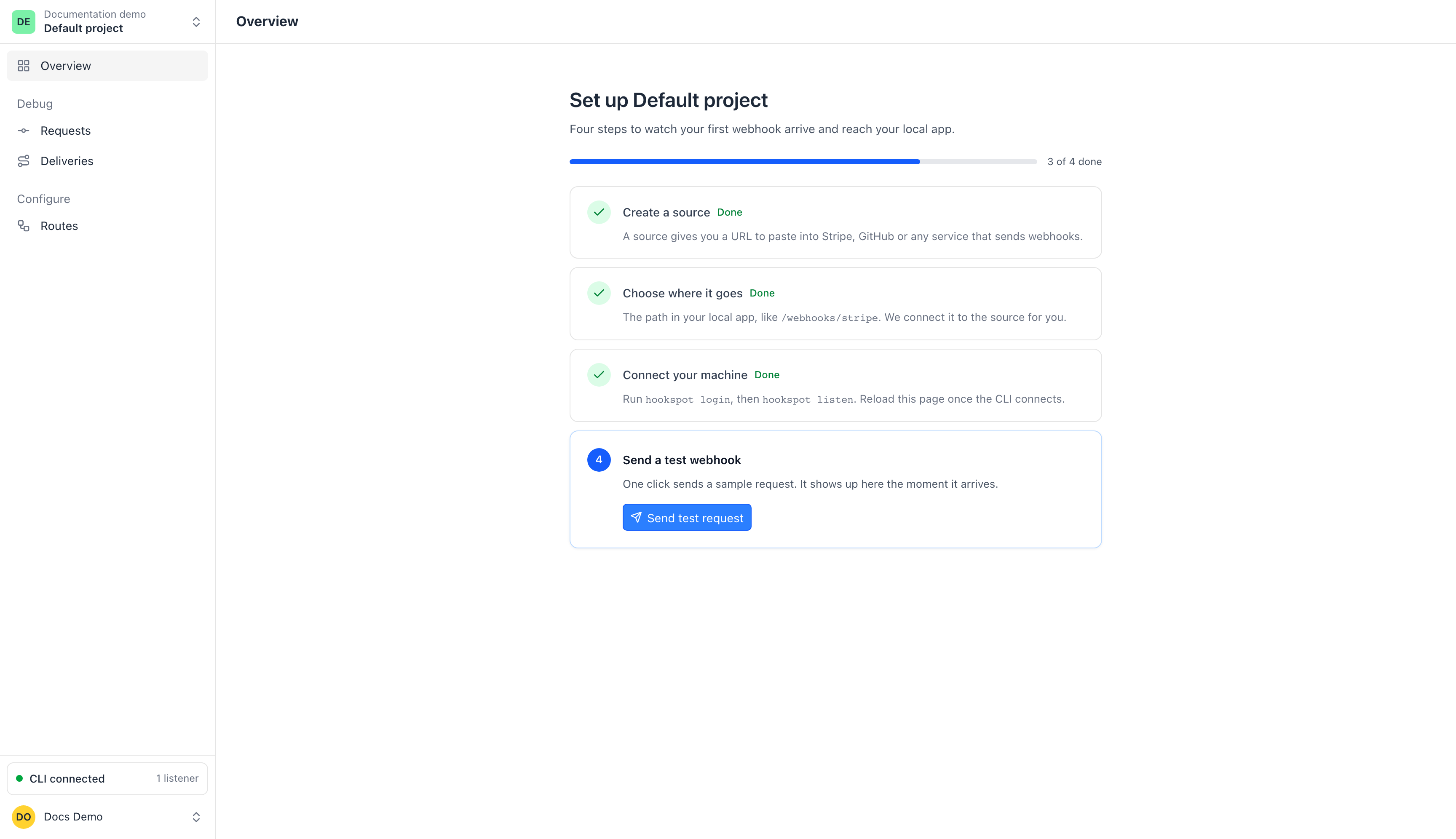
Connect your machine shows Done once hookspot listen connects and you reload the page.
Inspect the request
Section titled “Inspect the request”The CLI lists the request and, when forwarding, shows your app’s response.
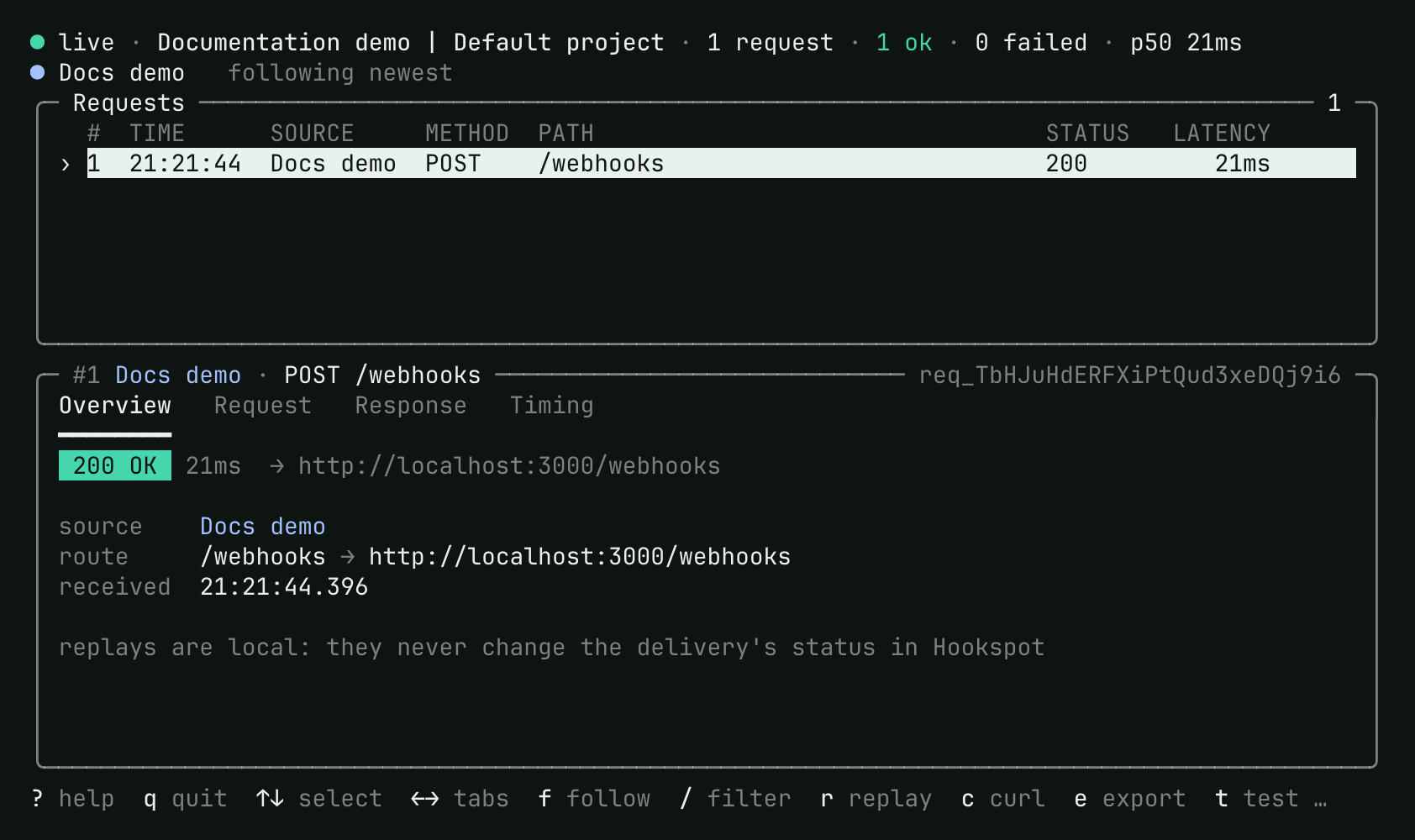
The list at the top holds each request. The panel below shows the selected one.
In Hookspot, with your app running and the CLI forwarding to it:
- Open Requests and select the new row. Its Outcome is Delivered
with
200. - Read What happened: Received, Routed to 1 route, then Delivered · 200.
- Select the Response tab to see the status, headers and body your app returned.
Next steps
Section titled “Next steps”To test a code change while forwarding to your app, select the request in the
CLI and press r to replay it.
Press q to stop the CLI. Keep the Docs demo route for
Inspect and retry a webhook, where you’ll
recover a webhook that arrived while the CLI was off.