
Verify webhook senders
Reject webhooks without a valid signature, password or API key.
Verification is Hookspot’s check that a webhook’s sender knows a secret you share with it. Turn it on for the Docs demo source from the quickstart, then send a webhook with and without the key.
Require an API key
Section titled “Require an API key”- Open Routes, click the Docs demo card and click Open.
- Open the Settings tab.
- Turn on Authenticate requests.
- Select API Key as the Authentication method.
- Enter
x-api-keyas the Header. - Click Generate.
- Copy the key it shows.
- Click Save.
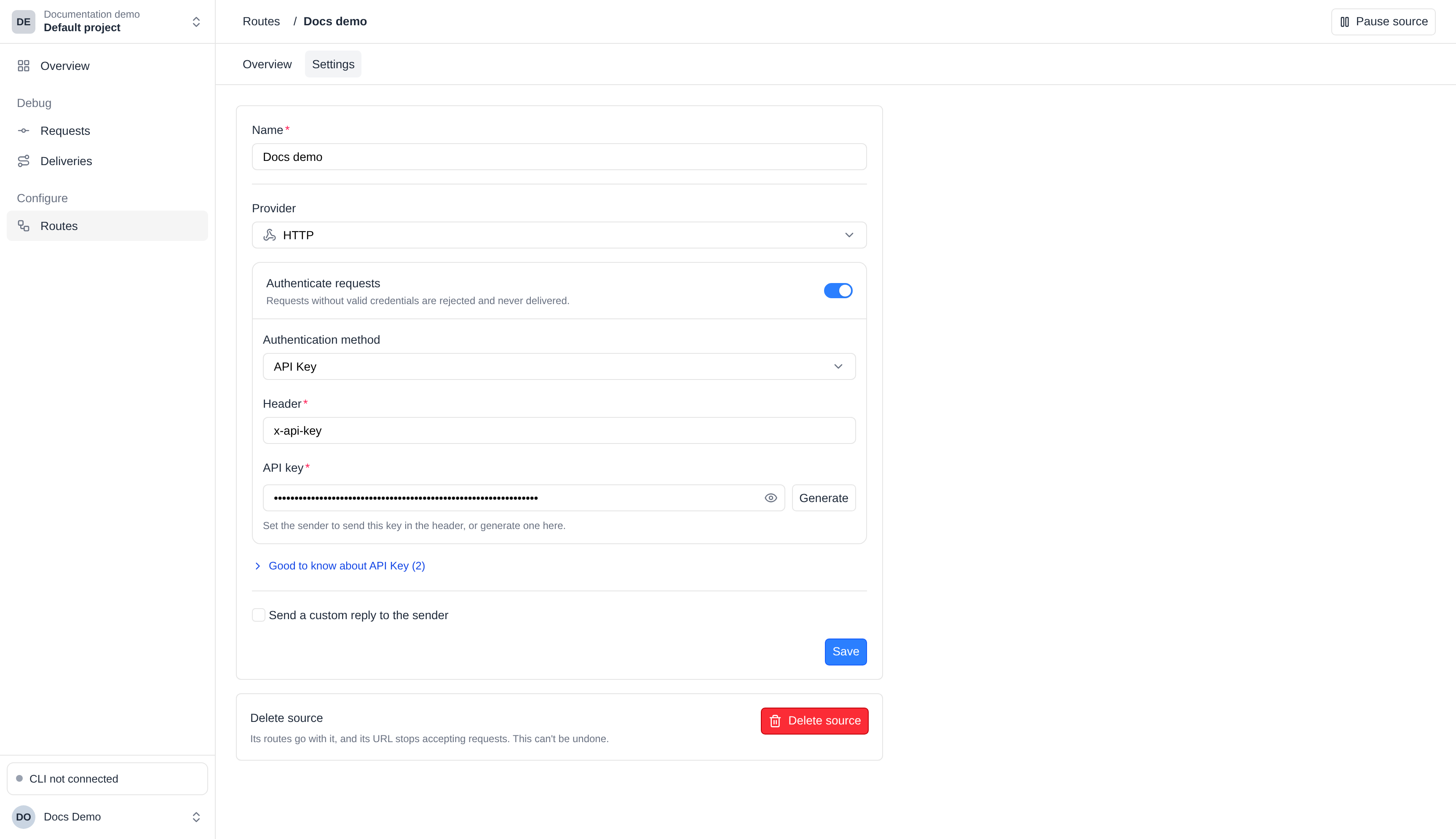
After you save, the field masks the key. Click the eye icon to show it.
Send a webhook without the key
Section titled “Send a webhook without the key”On the source’s Overview, copy the curl command beside its webhook URL.
Run it in any directory:
curl <webhook-url> -H 'content-type: application/json' --data-raw '{"type":"hookspot.test"}'{"status":"error","error":"verification_failed"}Hookspot answers 401 and never delivers the request. Requests lists it
as Rejected with Verification failed.
Send a webhook with the key
Section titled “Send a webhook with the key”Add the key in an x-api-key header. Replace <api-key> with the key you
copied:
curl <webhook-url> -H 'content-type: application/json' -H 'x-api-key: <api-key>' --data-raw '{"type":"hookspot.test"}'{"status":"ok","request_id":"req_LlGOWZAM2LLliJ9NgSB1JTmIWe"}Requests shows the new request as Verified, and Hookspot routes it.
Its Headers tab has no x-api-key, because Hookspot
removes the credential.
How verification works
Section titled “How verification works”Hookspot checks each webhook as it arrives. A webhook that passes is
Verified. One that fails is stored as Rejected,
answered 401 and never delivered.
While verification is off, requests are Not checked. Verification results lists each result and reason.
Verification proves only that the sender knows the secret. Hookspot accepts a correctly signed webhook however old its timestamp is.
Send test request in the app skips the check, so its request is
Not checked. The CLI’s t key
sends no credentials, so Hookspot rejects its test.
Verify a provider’s webhooks
Section titled “Verify a provider’s webhooks”A provider preset checks the signature GitHub, Shopify, Slack or Stripe adds to each webhook.
- On the source’s Settings, select the service as the Provider.
- Turn on the switch named for it, such as Verify Stripe signatures.
- Paste the secret the provider shows.
- Click Save.
| Provider | Secret | Where the provider shows it |
|---|---|---|
| GitHub | Webhook secret | Repository › Settings › Webhooks › Secret. You choose it, so Generate can make one. |
| Shopify | Client secret | Partner Dashboard › your app › Client credentials. |
| Slack | Signing secret | Your app › Basic Information › App Credentials. |
| Stripe | Signing secret | Stripe Dashboard › Webhooks › your endpoint. The Stripe CLI, test mode and live mode each have their own. |
Paste the secret the table names, not an API key, access token or bot token.
Shopify’s preset covers app webhooks over HTTPS, not Merchant Notifications. Slack’s covers the Events API, not slash commands, interactivity or Socket Mode.
Authentication methods
Section titled “Authentication methods”An HTTP source authenticates any other sender with one of four methods. Keep HTTP as the Provider, turn on Authenticate requests and select the Authentication method.
| Method | Settings | What the sender sends |
|---|---|---|
| HMAC | Signature header, Algorithm, Encoding and Secret | A digest of the raw body, signed with the secret, in the signature header. |
| Basic Auth | Username and Password | An Authorization: Basic header with the username and password. |
| API Key | Header and API key | The key as the header’s whole value. |
| Standard Webhooks | Signing secret, starting with whsec_ |
The webhook-id, webhook-timestamp and webhook-signature headers of the Standard Webhooks spec. |
For HMAC, Algorithm is SHA-256, SHA-1 or SHA-512, and
Encoding is Hex, Base64 or Base64 URL. The header’s value may
start with the algorithm’s name, as in sha256=. HMAC covers the body alone,
so a sender that also signs a timestamp or headers needs a preset.
To accept Authorization: Bearer <token>, use API Key with
authorization as the Header, and start the key with Bearer and a space.
Standard Webhooks checks v1 signatures, not v1a ones.
Removed credentials
Section titled “Removed credentials”A Basic Auth password or an API key works for anyone who copies it. When a request passes, Hookspot stores and delivers it without the header that carried the credential. The credential never shows in Requests and never reaches your app.
A request that fails keeps the header, so a Retry can check it again. Anyone who can open the project sees it there. A Replay copies the header too, and your listeners receive it.
The secret
Section titled “The secret”Hookspot stores the secret as you enter it and shows it only on the source’s Settings. Only the Owner, Admins and Members see it there, because Viewers cannot change sources. The field masks it until you click the eye icon.
Generate makes a random secret and shows it, so you can copy it to the sender. It appears for GitHub, HMAC, Basic Auth and API Key, whose secret you choose. Shopify, Slack, Stripe and Standard Webhooks senders issue their own.
Change the secret
Section titled “Change the secret”Hookspot checks each webhook against the one secret you saved. While you change it, webhooks signed with the other secret fail verification. Retry them once both sides match.
| Provider | How it switches |
|---|---|
| GitHub | GitHub signs with one secret. Change it in GitHub and in Hookspot together. |
| Shopify | Shopify can take up to an hour to switch to a new secret. Webhooks signed meanwhile may fail. |
| Slack | Slack signs with one secret at a time. Save a regenerated one in Hookspot right away. |
| Stripe | Stripe signs with both secrets until the old one expires. Save the new one before then, and no webhook fails. |
Slack’s URL check
Section titled “Slack’s URL check”Slack checks a new Request URL with a url_verification challenge, which the
URL must echo back. Hookspot answers it for a Slack source when its signature
passes, or while verification is off.
Hookspot does not store the challenge as a request, and your app never gets it. It counts once toward your monthly deliveries.
If the signature fails, Hookspot stores the challenge as a rejected request. Forwarding it cannot complete Slack’s setup. Fix the secret, then send a new challenge from your Slack app’s Event Subscriptions.
Retry a request that failed verification
Section titled “Retry a request that failed verification”Correct the source’s settings, such as the secret, then retry the request. Retry checks the stored request against the source’s current settings:
- If it passes, the request becomes Verified and Hookspot routes it.
- If verification is now off, it becomes Not checked and Hookspot routes it.
- If it fails again, it stays Rejected, and the rejection counts once more.
A Basic Auth or API Key credential that passes on Retry is removed, as on arrival.
A Verified Basic Auth or API Key request that Hookspot rejected for another reason, such as No route, stays Verified on Retry. It has no credential left to check. If the source now uses another method or provider, Hookspot checks the request like any other.
A Replay copy keeps the original’s result without a new check, as Replay a request explains.
Turn verification off
Section titled “Turn verification off”- Open the source’s Settings.
- Turn off Authenticate requests, or the provider’s Verify … signatures switch.
- Click Save.
New requests are Not checked again. For an HTTP source, Hookspot also removes the method, its settings and its secret.