
Authorized apps
Approve an agent, limit it to Read-only and revoke it.
An authorized app is an agent you approved to act as you in Hookspot. Approve one, limit it to Read-only or revoke it here.
How it works
Section titled “How it works”An authorized app acts as you in all your organizations, including ones you join later. In each one, it can do only what your role allows. Hookspot checks your role again on every call, so a role change applies from the agent’s next call.
The app keeps working until you revoke it, it goes 30 days unused, or you reset your password. Deleting your account ends it too. Changing your password or email keeps it.
Approve an agent
Section titled “Approve an agent”Hookspot shows this page when an agent connects:
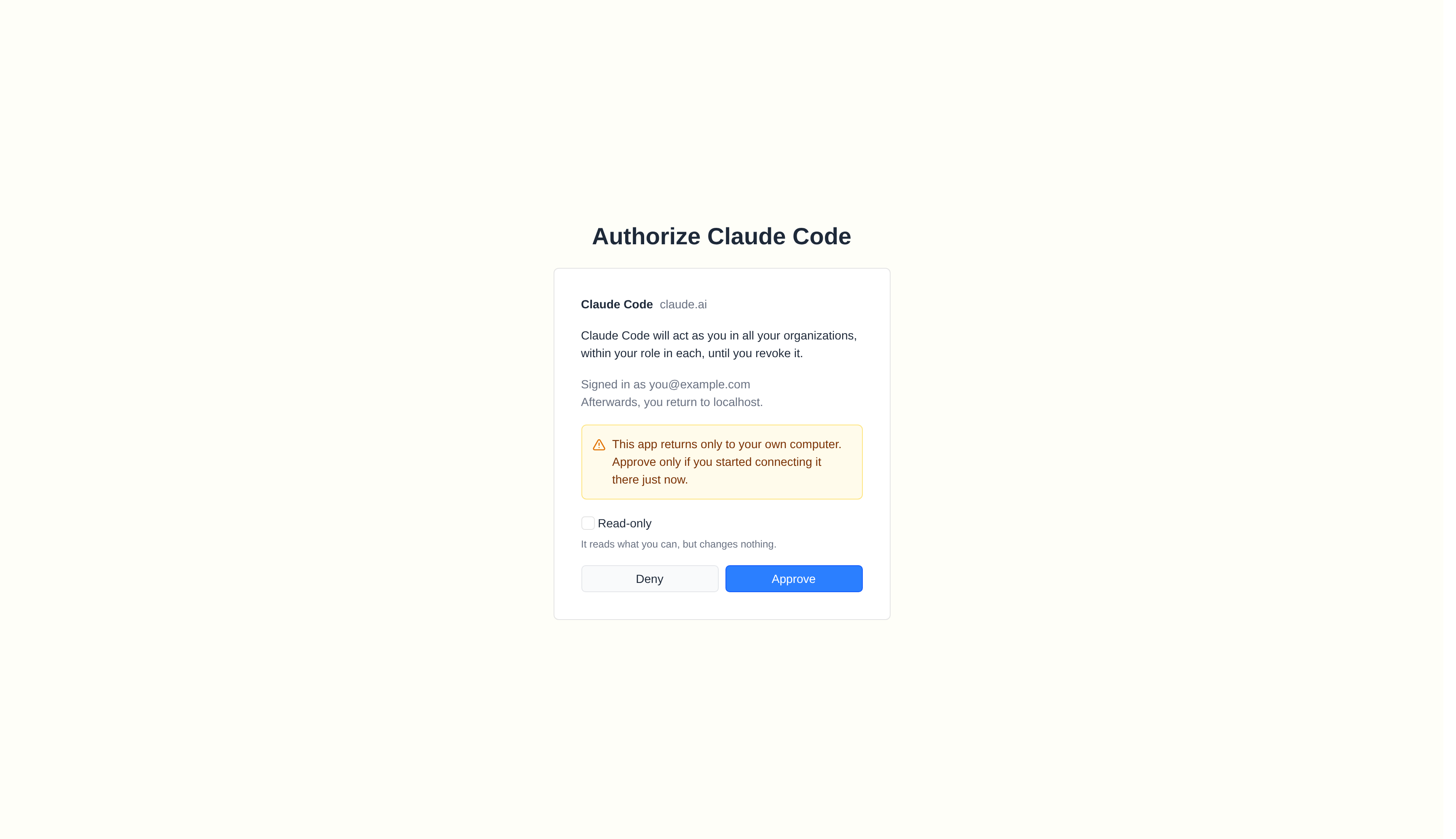
Claude Code asks to act as you. The warning shows because it returns only to your computer.
Check it before you click Approve:
| Part | What it tells you |
|---|---|
| Name and domain | The agent and the website it comes from, such as Claude Code from claude.ai. |
| Unverified | The agent registered itself, so Hookspot could not check its name. |
| Signed in as | The Hookspot account the agent acts as. |
| Afterwards, you return to | Where Hookspot sends you after you click Approve or Deny. |
| Warning about your computer | The agent returns only to your own machine. Approve only if you started connecting it there just now. |
| Read-only | Tick it to let the agent read but change nothing. |
Click Deny to send the agent back without access.
Read-only
Section titled “Read-only”A Read-only app gets only the tools marked Read in
Tools. Hookspot refuses any other tool with read_only,
and its message tells the agent to connect again without Read-only.
If an agent asks only to read, Hookspot ticks Read-only for you and you can’t untick it.
Each approval is a new app, so an agent you approved on two machines shows twice, and an app you replace keeps its access. To change an app’s access, revoke it, then connect the agent again with Read-only ticked or unticked.
After you reconnect, ChatGPT keeps its old tool list until you refresh Hookspot in ChatGPT:
- Open Plugins.
- Select Hookspot.
- Click Refresh.
Revoke an app
Section titled “Revoke an app”Authorized apps lists every app you approved, newest first:
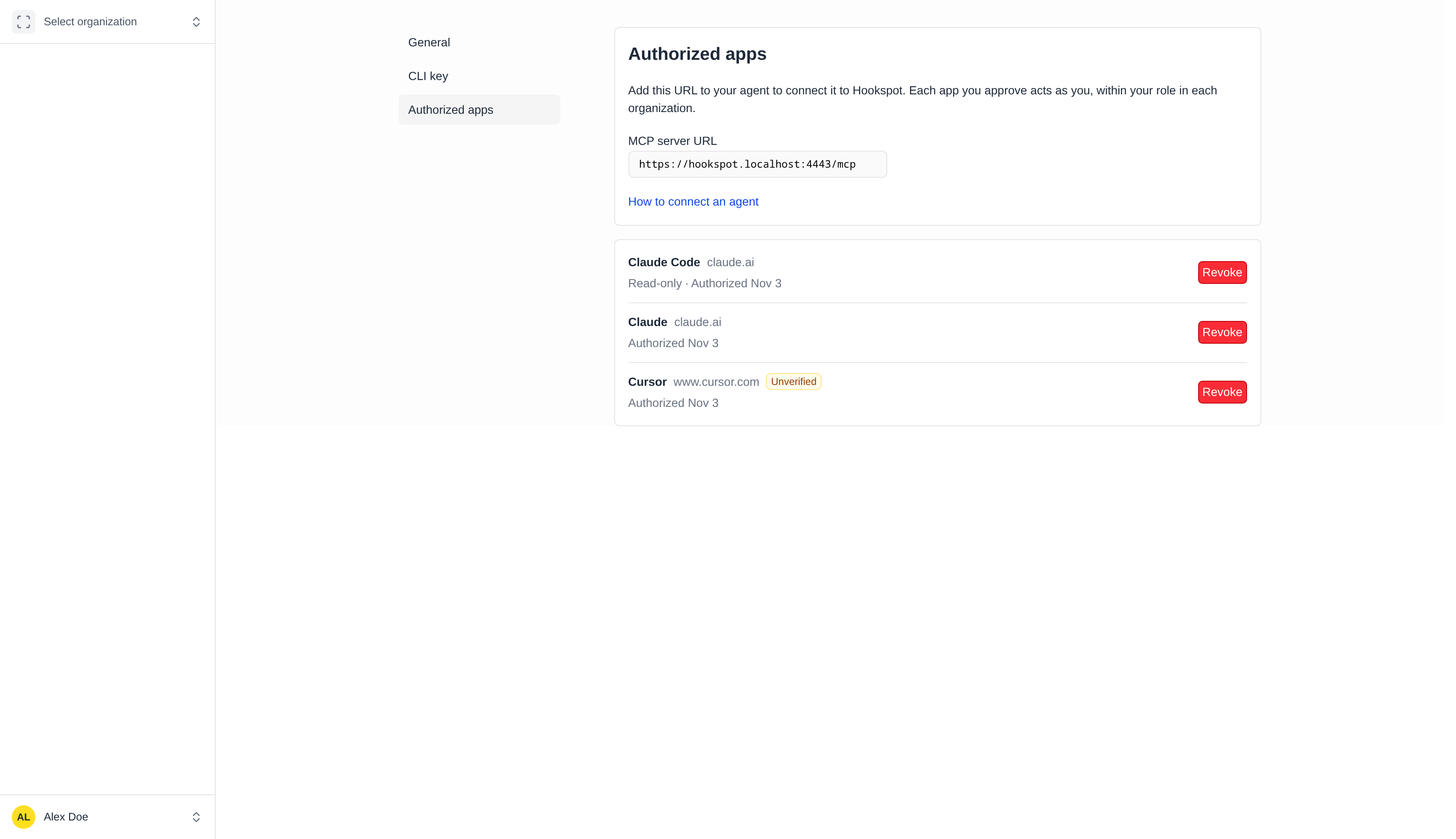
Each row shows the agent, its domain, Read-only and the day you approved it.
- In Hookspot, open the user menu and click Account settings.
- Select Authorized apps.
- Click Revoke next to the app and confirm.
The app stops working at once, and the agent’s next call fails. To use the agent again, connect it and approve it again.